An AI website builder can add a quiz, a calculator, an image gallery, a seasonal banner, location or campaign messages, a weather background, an interactive timeline, a subscription landing page, an A/B test and a paywall popup offer to a publisher site from a plain-language prompt. We built twelve of them in Pelcro AI Studio and list each one below with a demo and a prompt you can copy.
This post is for publishers, associations and nonprofits that want their site to do more but have no developer on hand. Each example shows what we asked for, what AI Studio built, and what it refused to guess, so you know what to expect before you try it.
What is an AI website builder?
An AI website builder is a tool that changes a website from written instructions instead of manual editing or code. You describe what you want, such as a quiz at the end of an article, and the tool builds it and shows you a preview.
For a publisher, the value is speed on small jobs. Interactive pieces, banners and theme changes that used to wait in a developer queue can be requested in a sentence and checked in a draft before anything goes live.
Other approaches rely on drag-and-drop editors, plugins, or a developer writing custom code. AI Studio is Pelcro's agent for paywalls and checkouts, and it works on a publisher's site and shows each change in a draft preview first. Pelcro also offers an AI website builder that creates a full publishing site, with versions for nonprofits and membership organizations.
What can publishers build with an AI website builder?
Publishers can build the twelve reader-facing features in the table below from a single prompt, except the landing page, which took four. Every demo was recorded in AI Studio on a sandbox demo site called The Pelcro Times.
| Example | Where it goes | Model cost |
|---|---|---|
| Quiz | End of an article | $0.76 |
| Interactive calculator | After the intro | $0.61 |
| Image gallery with a lightbox | Inside an article | $1.13 |
| Interactive timeline and progress bar | After the intro, and the top of every article | $0.83 |
| Brand theme | The whole site | $1.10 |
| Escalating seasonal banner | Under the menu on every page | $1.40 |
| Location-based welcome strip | Under the masthead on the home page | $0.72 |
| UTM-based banner | Under the menu, kept across pages | $0.60 |
| Weather-reactive masthead | Behind the masthead | $0.98 |
| Subscription landing page | A new page for ad and email traffic | $4.23 (four prompts) |
| A/B test | A landing page, with a link for each version | $1.25 |
| Paywall popup offer | Pelcro's popup and plan-select screen | $3.92 |
Use the filter to show only the examples that suit your kind of publication. Each card has a demo, what we learned, and a prompt with a copy button.
Each card shows its "Model cost": the AI model usage for that build, in US dollars, read from a fresh conversation. It is not the same as AI Studio credits. The landing page figure covers all four of its prompts.
Filter by business type
Showing 12 of 12 examples
- News publisher
- Magazine and trade media
- Association
Quiz at the end of an article
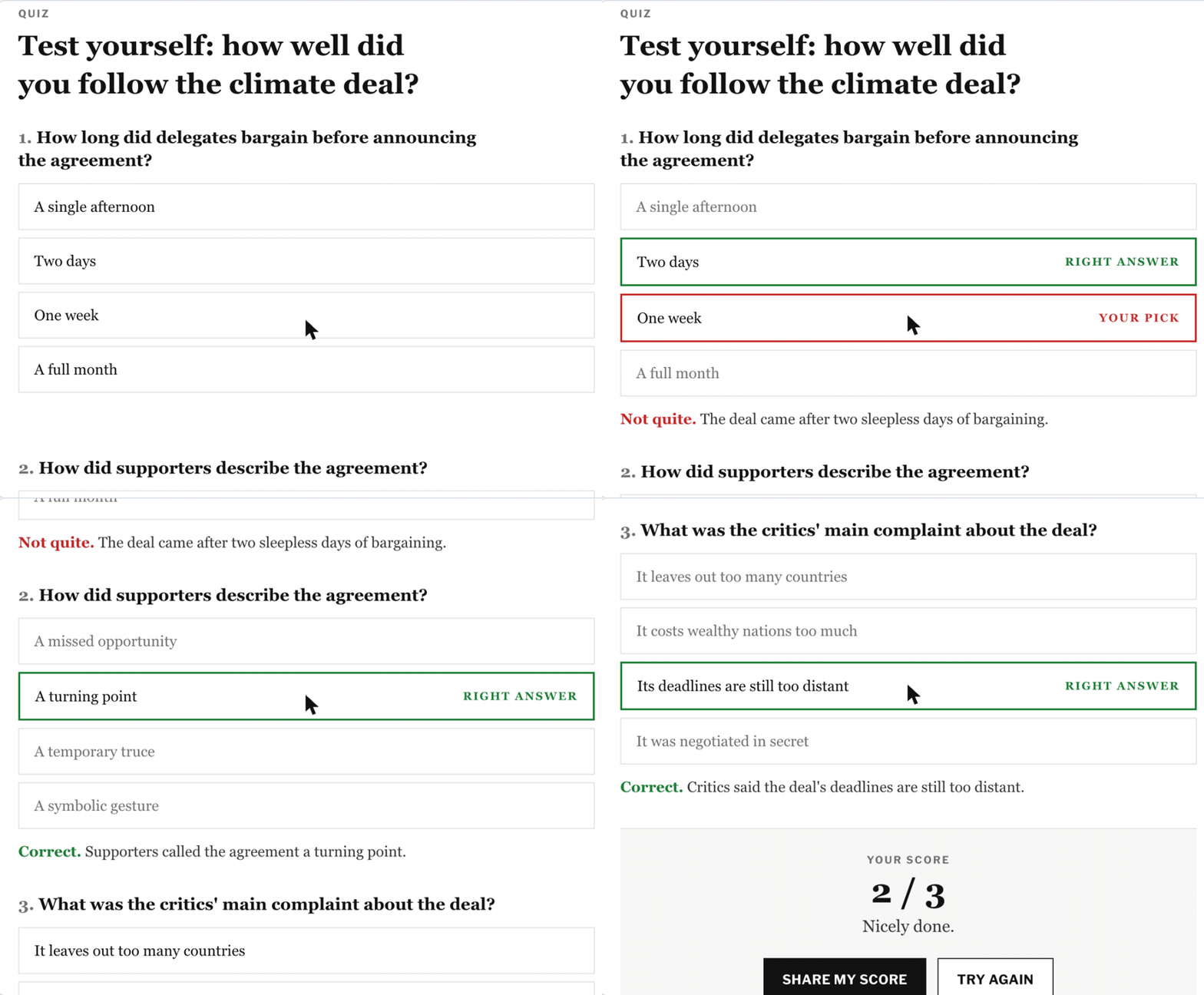
A short multiple-choice quiz that checks what readers took from the story. Each answer shows right or wrong at once with a one-line explanation, and the last screen gives a score with Share my score and Try again buttons.
- Prompts it took:
- 1
- Run time:
- 5m 18s
- Model cost:
- $0.76
What we learned: The first run put the quiz behind the paywall, so only subscribers saw it. The prompt below asks for the quiz to be visible to every reader and to use only facts from the free part of the article.
AI Studio prompt
On my article "[ARTICLE TITLE]", add a [3]-question multiple-choice quiz at the end of the article body, before the related stories. Title it "[QUIZ TITLE]". Base the questions only on facts from the free part of the article, and show the quiz to every visitor, logged in or not. When a reader picks an answer, show right or wrong instantly with a one-line explanation. At the end, show their score with "Share my score" and "Try again" buttons. Match my site's fonts and colors.
Replace the highlighted [brackets] with your own details.
- News publisher
- Association
- Nonprofit
Interactive calculator
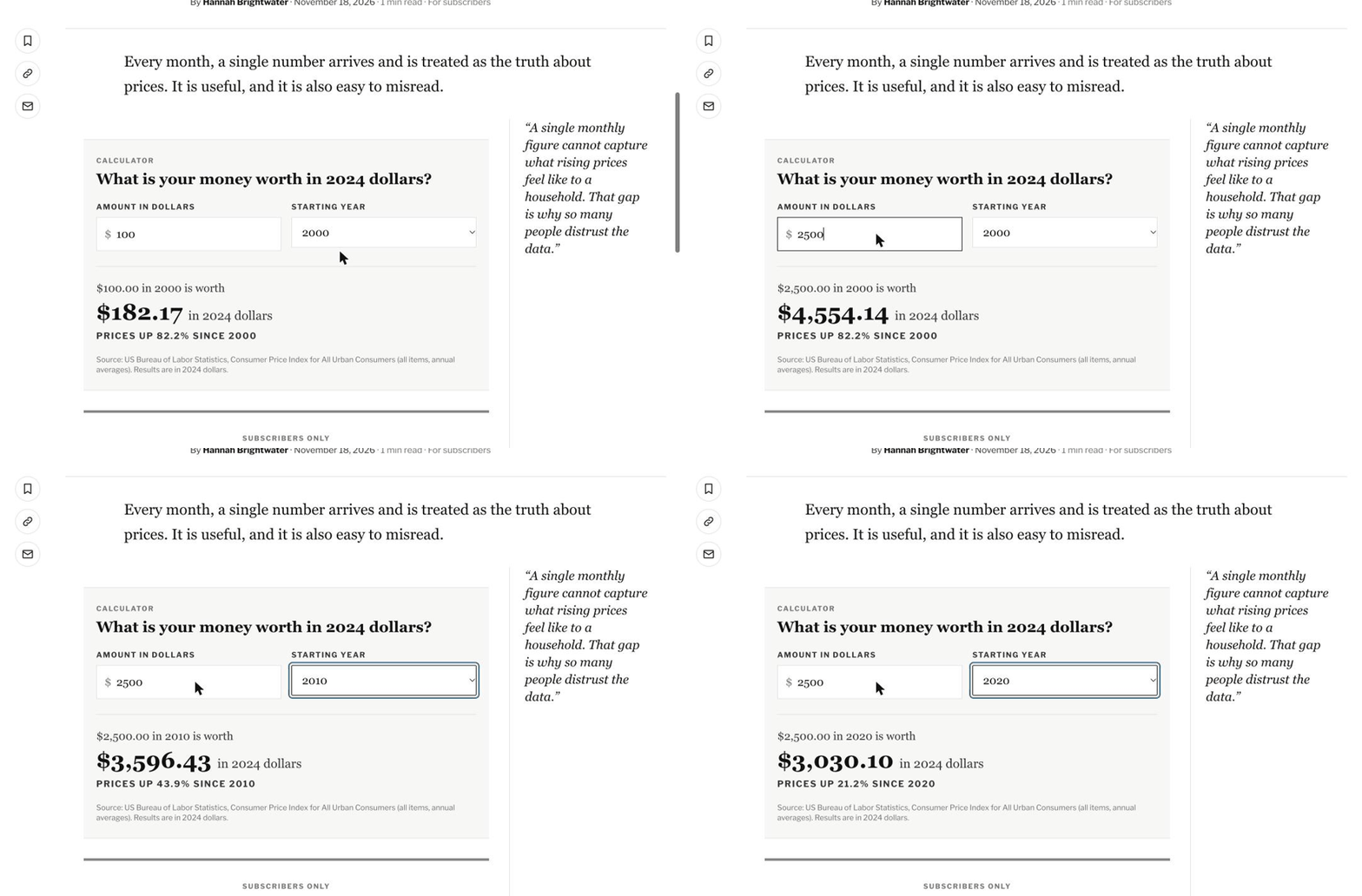
A calculator placed right after the intro, such as what an amount of money is worth today. The result updates as the reader types, and a one-line source note sits underneath.
- Prompts it took:
- 1
- Run time:
- 2m 52s
- Model cost:
- $0.61
What we learned: AI Studio would not guess consumer price figures it could not confirm. Our calculator covers 2000 to 2023 and shows results in 2024 dollars, so expect it to ask which data you trust.
AI Studio prompt
On my article "[ARTICLE TITLE]", add an interactive [TYPE OF CALCULATOR, e.g. inflation / mortgage / savings] calculator right after the intro paragraph so every visitor can use it. The reader enters [INPUTS, e.g. an amount and a starting year] and the result updates instantly to show [OUTPUTS, e.g. what it is worth today and the % change]. Use [DATA SOURCE] and only figures you can confirm, and add a one-line source note. Match my site's fonts and colors, in light and dark mode.
Replace the highlighted [brackets] with your own details.
- News publisher
- Magazine and trade media
- Nonprofit
Image gallery with a full-screen lightbox
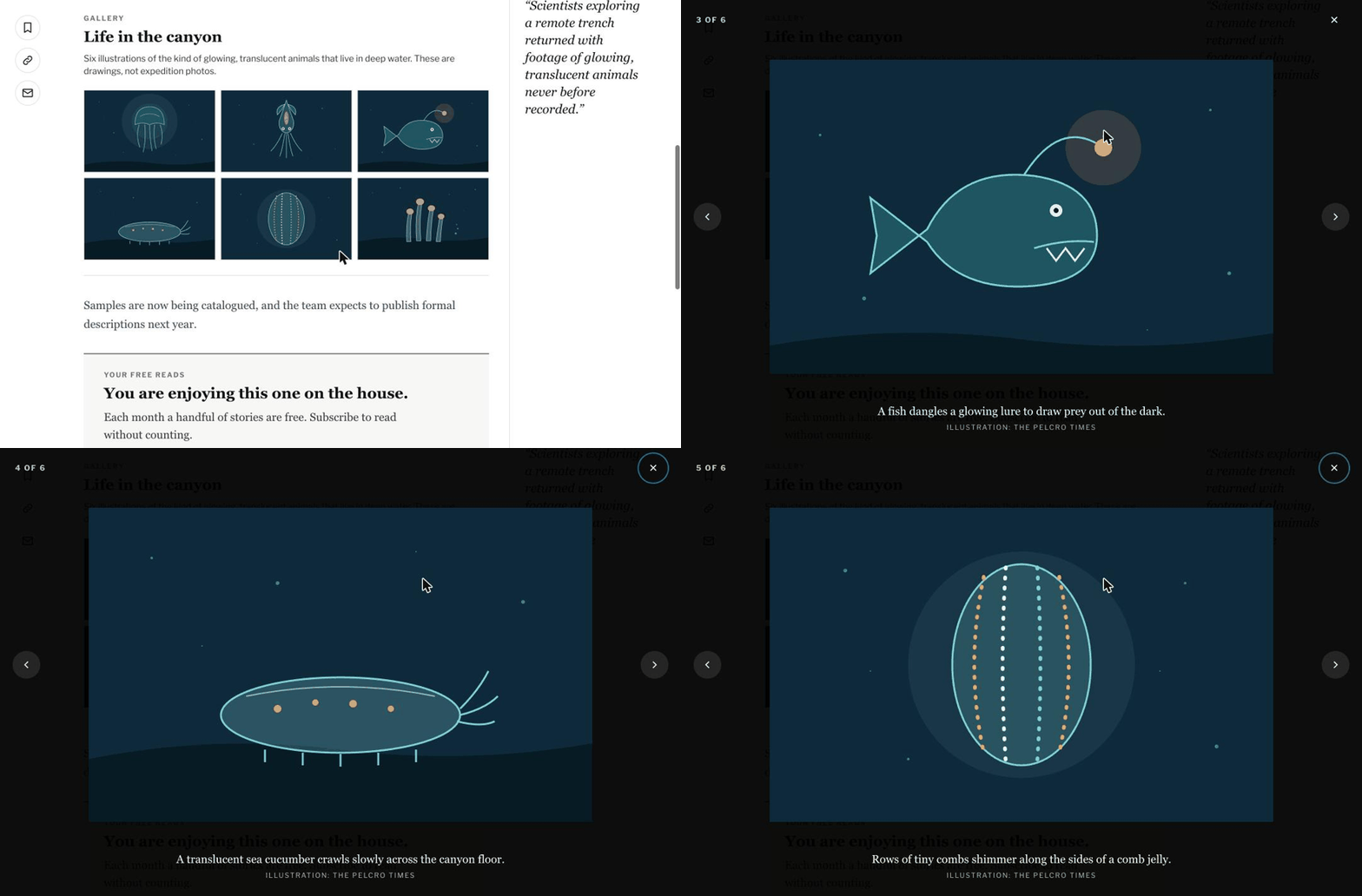
A grid of thumbnails inside an article. Clicking one opens a full-screen view with a caption, a credit, next and previous arrows, keyboard and swipe support, and an x of 6 counter.
- Prompts it took:
- 1
- Run time:
- 5m 48s
- Model cost:
- $1.13
What we learned: We did not upload photos, so AI Studio drew six illustrations and labelled them as illustrations, not photos. For a real gallery, attach your own photos and ask it to use them.
AI Studio prompt
On my article "[ARTICLE TITLE]", add an image gallery after the intro paragraph using [the photos I've attached / 6 illustrations in my site's style]. Show them as a grid of thumbnails. Clicking a thumbnail opens a full-screen lightbox with the image, a one-line caption and a credit, with next/previous arrows, keyboard arrow keys, swipe on mobile, and an "x of [N]" counter. Match my site's fonts and colors.
Replace the highlighted [brackets] with your own details.
- News publisher
- Magazine and trade media
- Association
Interactive timeline and reading progress bar
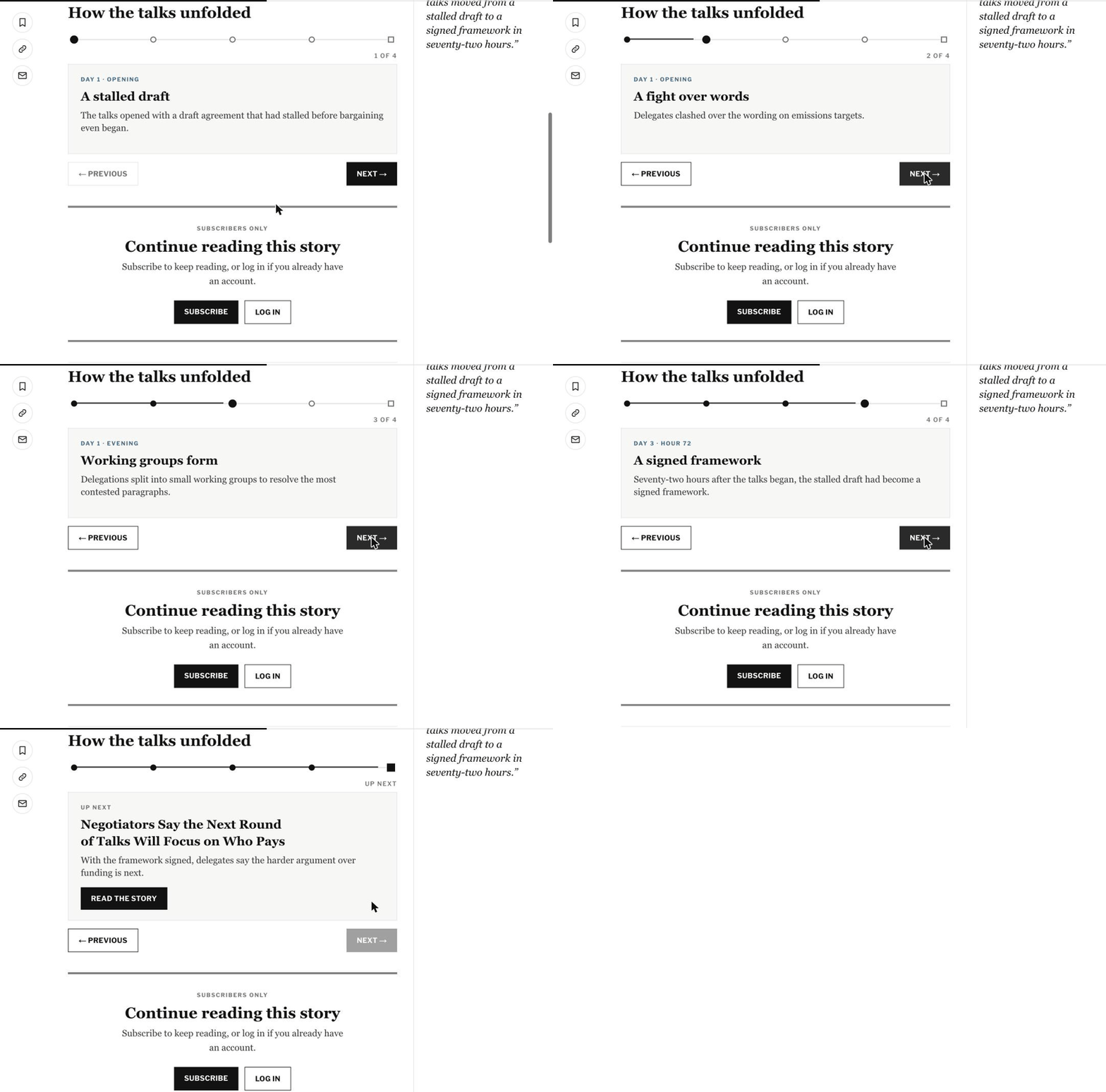
A timeline card after the intro that readers step through with Previous and Next, clickable dots or the arrow keys, plus an Up next card at the end and a thin progress bar that fills as they scroll. Pieces like this give readers a reason to stay on the page.
- Prompts it took:
- 1
- Run time:
- 4m 27s
- Model cost:
- $0.83
What we learned: AI Studio built four moments, not the six to eight we asked for. The free part of the article only covered day one and the result, and it would not invent times or use paywalled facts.
AI Studio prompt
On my article "[ARTICLE TITLE]", add an interactive timeline right after the intro paragraph so every visitor can use it. Show [N] key moments using only facts from the article. Each moment is a card with the date or time, a short title and one sentence; readers move through them with Previous and Next buttons, by clicking dots on a progress line, or with the keyboard arrows. At the end, show an "Up next" card linking to "[NEXT ARTICLE TITLE]". Also add a thin reading-progress bar at the top of every article page that fills as the reader scrolls. Match my site's fonts and colors.
Replace the highlighted [brackets] with your own details.
- News publisher
- Magazine and trade media
- Association
- Nonprofit
Brand theme: colors, fonts and layout details
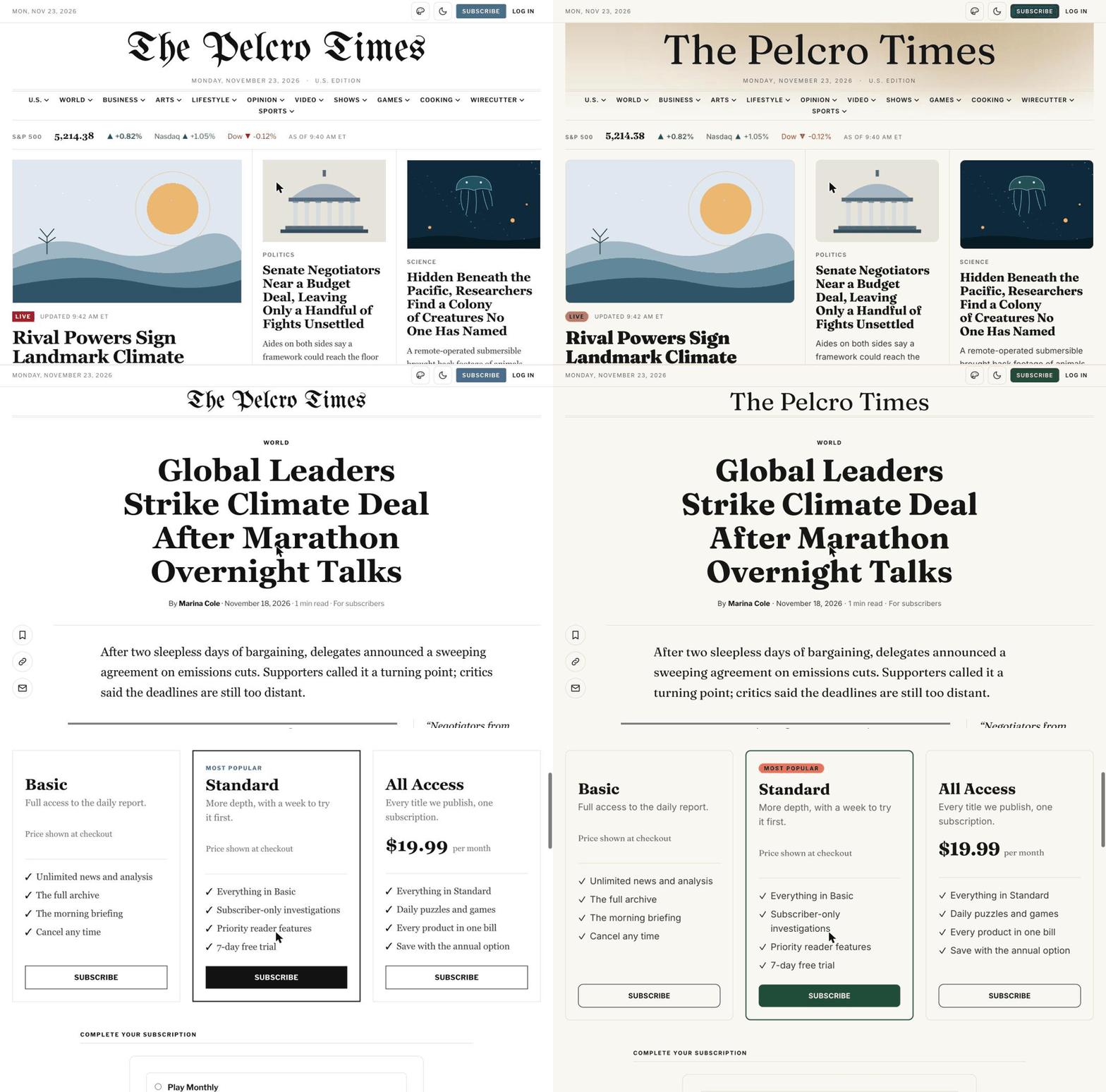
A new look for the whole site in one prompt: brand colors for buttons and links, an accent for labels, new fonts, a new logo treatment, rounded corners and a page background. The layout and content stay the same.
- Prompts it took:
- 1
- Run time:
- 5m 57s
- Model cost:
- $1.10
What we learned: It worked across the home page, an article, the subscribe page and dark mode. AI Studio also adjusted our coral accent for readability, setting the labels in near-black text because white on coral failed contrast.
AI Studio prompt
Retheme my whole website with a new brand look, keeping the same layout and content: [MAIN COLOR + HEX] as the main brand color for buttons, links and highlights, with [ACCENT COLOR + HEX] as an accent for labels and badges. Use [HEADLINE FONT] for headlines and [BODY FONT] for body text and menus, and set my logo text "[SITE NAME]" in [HEADLINE FONT]. Give buttons and cards slightly rounded corners and use [BACKGROUND COLOR + HEX] as the page background. Make sure dark mode and contrast still work.
Replace the highlighted [brackets] with your own details.
- Magazine and trade media
- Association
- Nonprofit
Escalating seasonal banner
A countdown banner under the main menu that changes every day. Each day shows the days left, a new line of copy, and an illustration that gets more festive as the date gets closer. Readers can close it for the day, and it disappears outside the dates.

- Prompts it took:
- 1
- Run time:
- 8m 34s
- Model cost:
- $1.40
What we learned: It worked first time, with 25 different daily lines. AI Studio could not test dated addresses itself, so the prompt asks for a preview_date address you can use to check every day.
AI Studio prompt
Add a [HOLIDAY] countdown banner at the top of every page, just under the main menu, that changes every day from [START DATE] to [HOLIDAY DATE]. Each day shows the number of days left, a short line that is different every day, and a small illustration that gets more festive as the day gets closer (for example: a bare tree, then lights, ornaments, presents and snow, up to a fully decorated tree on the last day). Readers can close it for the day. Outside those dates the banner doesn't show. So I can check every stage, let me preview any date by adding ?preview_date=YYYY-MM-DD to the page address. Match my site's fonts and colors.
Replace the highlighted [brackets] with your own details.
- News publisher
- Association
- Nonprofit
Location-based welcome strip
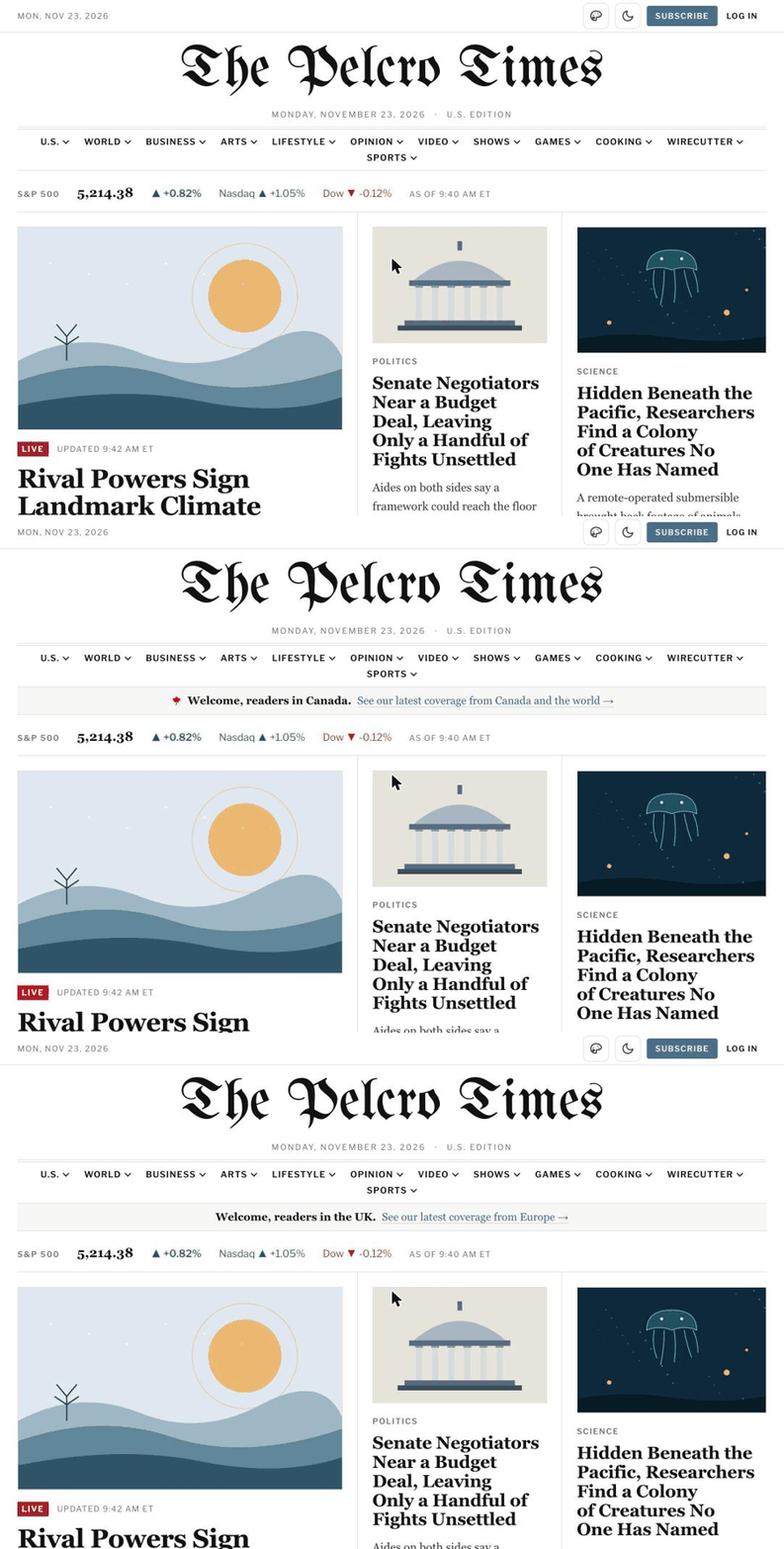
A slim strip under the masthead that changes with the visitor's country. Visitors in one country see a local welcome and a link, visitors in another see a different one, and everyone else sees nothing different.
- Prompts it took:
- 1
- Run time:
- 2m 58s
- Model cost:
- $0.72
What we learned: AI Studio would not show Canadian dollar prices because our plans only exist in US dollars, and it would not say we are a Canadian company because our account is set up in the US. Only mention local prices or local facts you can back up. When we opened the preview from Toronto, the Canada strip showed without any test setting.
AI Studio prompt
Show a short welcome strip under the masthead on my home page depending on the country a visitor is in. Visitors in [COUNTRY 1] see "[MESSAGE 1]" with a link to [PAGE]. Visitors in [COUNTRY 2] see "[MESSAGE 2]" with a link to [PAGE]. Everyone else sees nothing different. Work out the country without asking the visitor for permission. So I can test it, let me force a country by adding ?preview_country=XX to the page address. Match my site's fonts and colors. (Tip: only mention local prices if you have plans in that currency in Pelcro.)
Replace the highlighted [brackets] with your own details.
- News publisher
- Magazine and trade media
- Nonprofit
UTM-based personalization
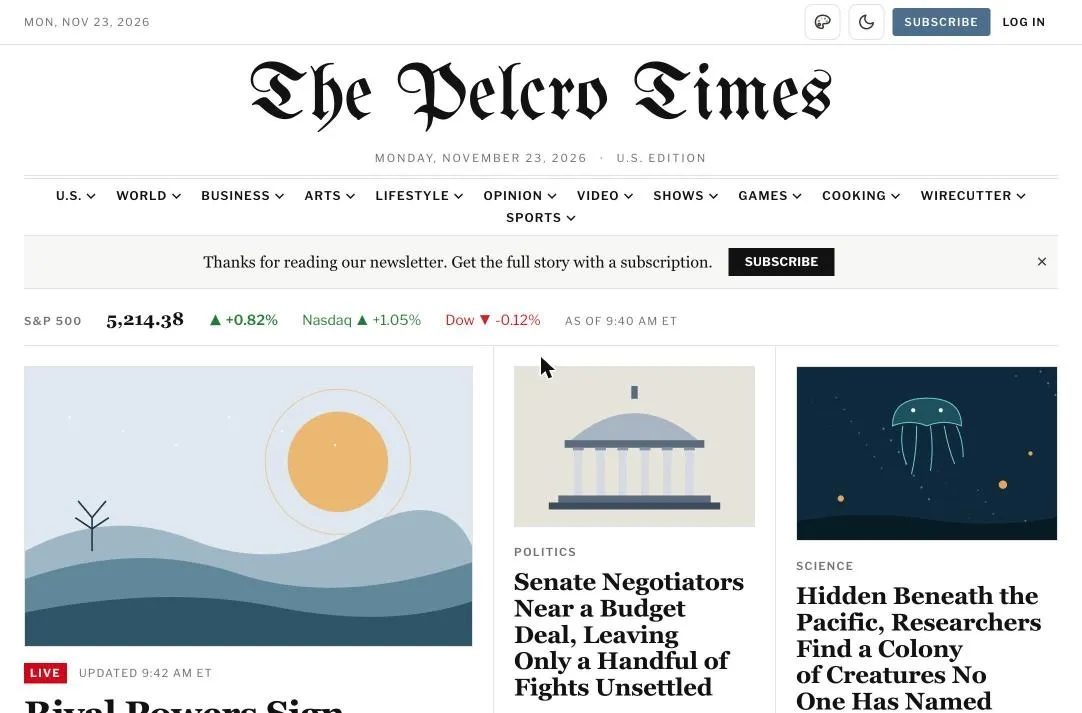
A banner under the main menu that changes with the utm_campaign in the link a visitor arrived from, so a newsletter reader, a podcast listener and a campaign visitor each see a message written for them. The campaign is remembered for the visit.
- Prompts it took:
- 1
- Run time:
- 4m 15s
- Model cost:
- $0.60
What we learned: AI Studio would not advertise a Black Friday discount that did not exist in the account, and suggested a real coupon code instead. Our first build did not show the banner, and it took four prompts to get it working. The prompt below includes those fixes, and a later fresh run used one prompt.
AI Studio prompt
Personalize my home page based on the UTM campaign in the link a visitor arrives from. Add a banner just under the main menu that changes with utm_campaign: "[CAMPAIGN 1]" shows "[MESSAGE 1]" with a [BUTTON TEXT] button to [PAGE]; "[CAMPAIGN 2]" shows "[MESSAGE 2]" linking to [PAGE]. Any other campaign, or none, shows no banner. Remember the campaign for the rest of the visit so the banner stays as they click around, and let readers close it. Match my site's fonts and colors. (Tip: only mention an offer if the coupon already exists in Pelcro.)
Replace the highlighted [brackets] with your own details.
- News publisher
- Magazine and trade media
Weather-reactive masthead
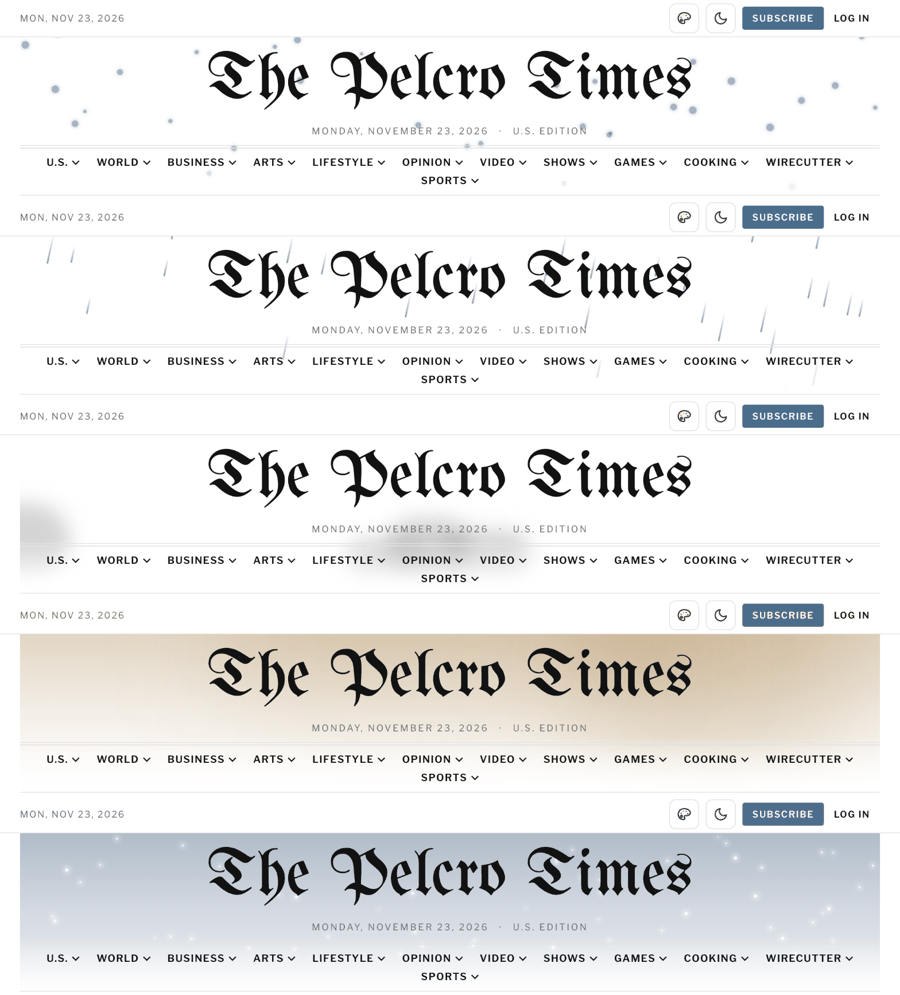
A background behind the masthead that matches the visitor's local weather: snow, rain, drifting clouds, a warm sunny gradient or a blue night sky. The logo and menu stay readable, and the motion turns off for visitors who prefer reduced motion.
- Prompts it took:
- 1
- Run time:
- 5m 7s
- Model cost:
- $0.98
What we learned: Our first version worked but was too faint to notice, so the prompt asks for effects that are clearly visible. Weather is cached for 30 minutes. In AI Studio's own check the live lookup did not show on desktop or tablet, so test the live weather before you publish.
AI Studio prompt
Add a weather-reactive background to my home page header that matches the visitor's current local weather: falling snow when it's snowing, rain streaks when it's raining, soft grey clouds drifting across when it's cloudy, a warm gradient when it's sunny, and a deep blue starry sky at night. Make it clearly visible but keep my logo and menu easy to read, and turn the animation off for visitors who prefer reduced motion. Work out the weather from the visitor's approximate location without asking for permission, using a free weather service that needs no key. If the weather can't be found, show nothing. So I can test it, let me force a condition by adding ?preview_weather=snow (or rain, clouds, sun, night) to the page address.
Replace the highlighted [brackets] with your own details.
- News publisher
- Magazine and trade media
- Association
- Nonprofit
Landing page for a subscription offer
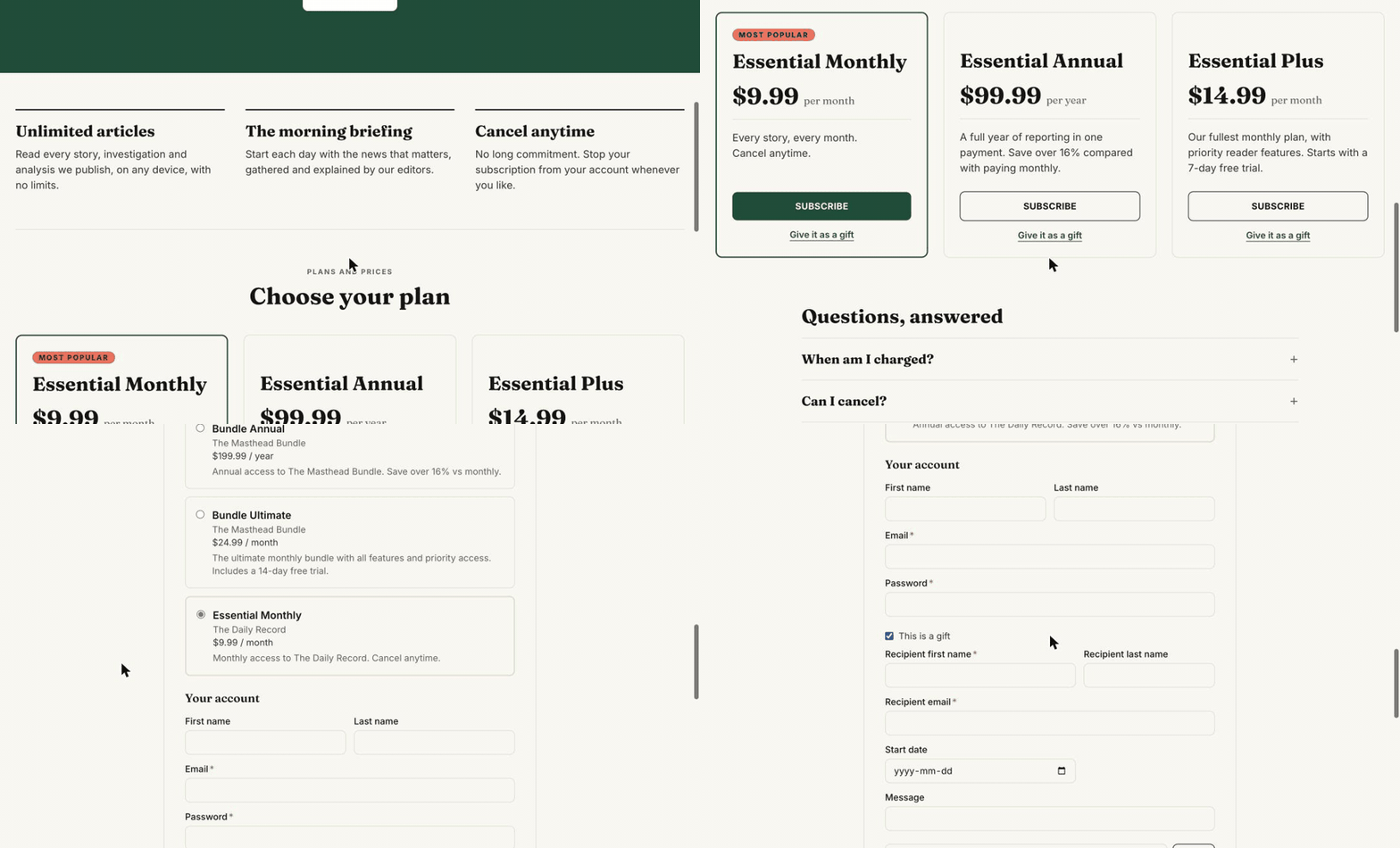
A new page for ad and email traffic that sits outside the main menu. It has a headline and Subscribe button, three benefit blocks, plan cards with your real Pelcro plans and prices, a gift link that opens checkout with the gift box ticked, a short FAQ, and a sticky Subscribe bar on phones.
- Prompts it took:
- 4
- Run time:
- 4m 28s, 2m 25s, 2m 15s and 1m 57s
- Model cost:
- $4.23 across 4 prompts ($0.99 for the first)
What we learned: AI Studio said the sticky bar and the gift tick worked after the first prompt. Neither did, and it later said it can only take still pictures, so it cannot scroll or click to test. Check the interactive parts by hand. It used our real Pelcro plans and prices and would not invent any. The prompt below includes the fixes.
AI Studio prompt
Create a new landing page for my [CAMPAIGN] campaign at /offers/[SLUG]. Keep it out of the main menu, since traffic will come from ads and emails. Include: a bold hero with the headline "[HEADLINE]", a one-line subhead and a Subscribe button that scrolls to the plans; three short benefit blocks ([BENEFIT 1], [BENEFIT 2], [BENEFIT 3]); plan cards that use my real Pelcro plans and prices, with [PLAN] highlighted as most popular, each Subscribe button opening Pelcro checkout with that plan selected, and a "Give it as a gift" link that opens checkout with the gift box ticked; a short FAQ ([QUESTIONS]); and a sticky Subscribe bar on phones that appears once the hero has scrolled off screen and hides while a plan's Subscribe button is visible. Only state prices and offers that exist in my Pelcro account, and use my site's name, not the product name, in the page copy. Match my site's fonts and colors.
Replace the highlighted [brackets] with your own details.
- News publisher
- Magazine and trade media
- Association
- Nonprofit
A/B test on a landing page
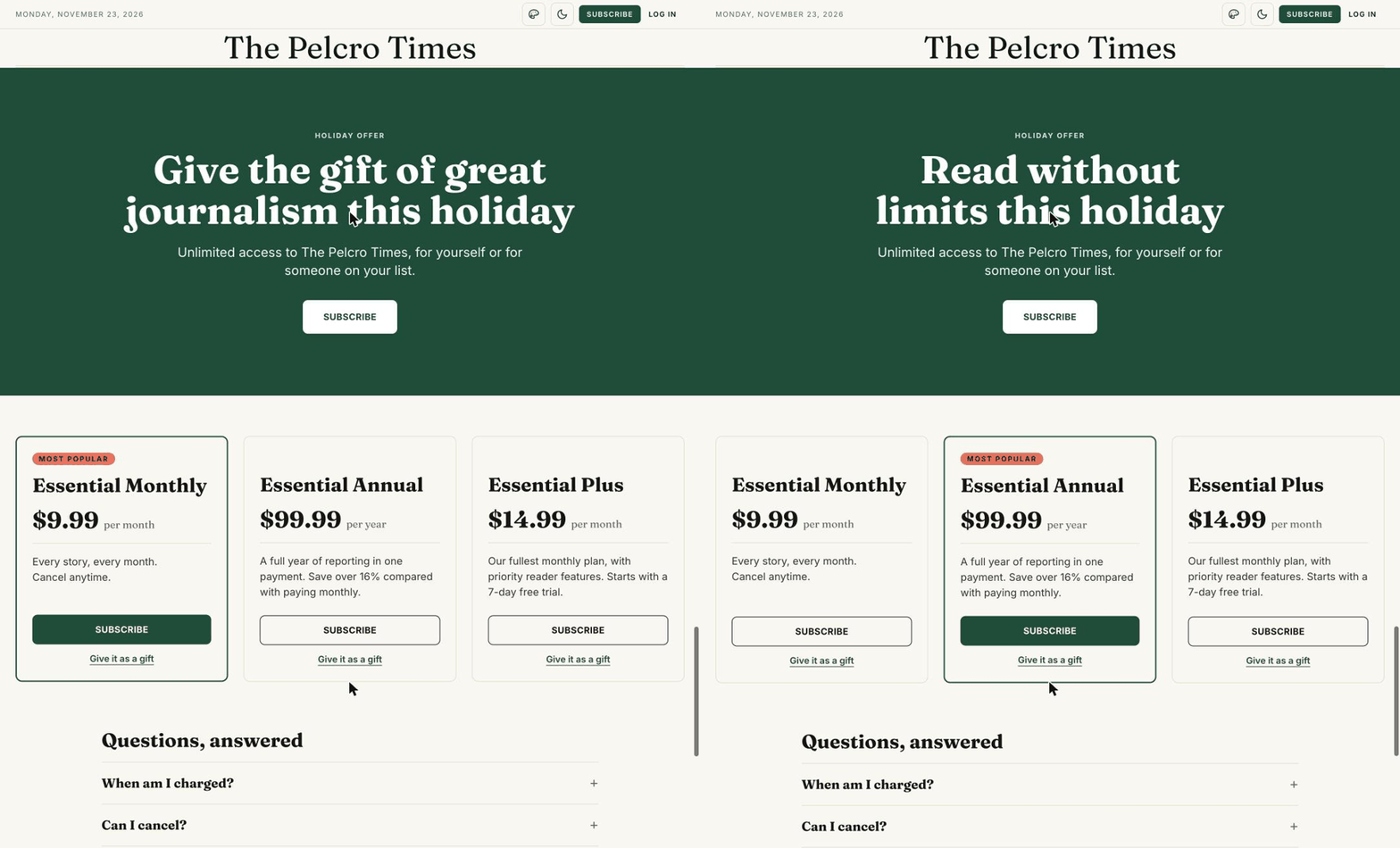
Two versions of a page that split new visitors 50/50 and keep each visitor on the same version. Adding ?variant=a or ?variant=b to the address forces a version, so each one can be linked from a different email or ad. A small hidden label names the version on screen.
- Prompts it took:
- 1
- Run time:
- 6m 22s
- Model cost:
- $1.25
What we learned: It worked on the first prompt. We checked that both ?variant links work, that a forced version is remembered, and that a fresh visit lands on either version. Our demo site has no analytics connected, so AI Studio said so plainly: the version and every Subscribe click are sent to the page's data layer, but nothing reads them until you connect Google Analytics, Google Tag Manager or Mixpanel. Visitors who block scripts always see version A.
AI Studio prompt
Set up an A/B test on my [PAGE] page. Version A is the page as it is now. Version B changes [CHANGE 1] and [CHANGE 2]; everything else stays the same. Split new visitors 50/50 at random and keep each visitor on the same version on later visits. Let me force a version with ?variant=a or ?variant=b in the page address, so I can link each version from a different email or ad. Record which version each visitor saw and every Subscribe click with the version and plan, using the analytics my site already has (if it has none, tell me plainly). Add a hidden label with the version name so I can confirm which one is showing.
Replace the highlighted [brackets] with your own details.
- News publisher
- Magazine and trade media
- Association
Subscription offer on the paywall popup
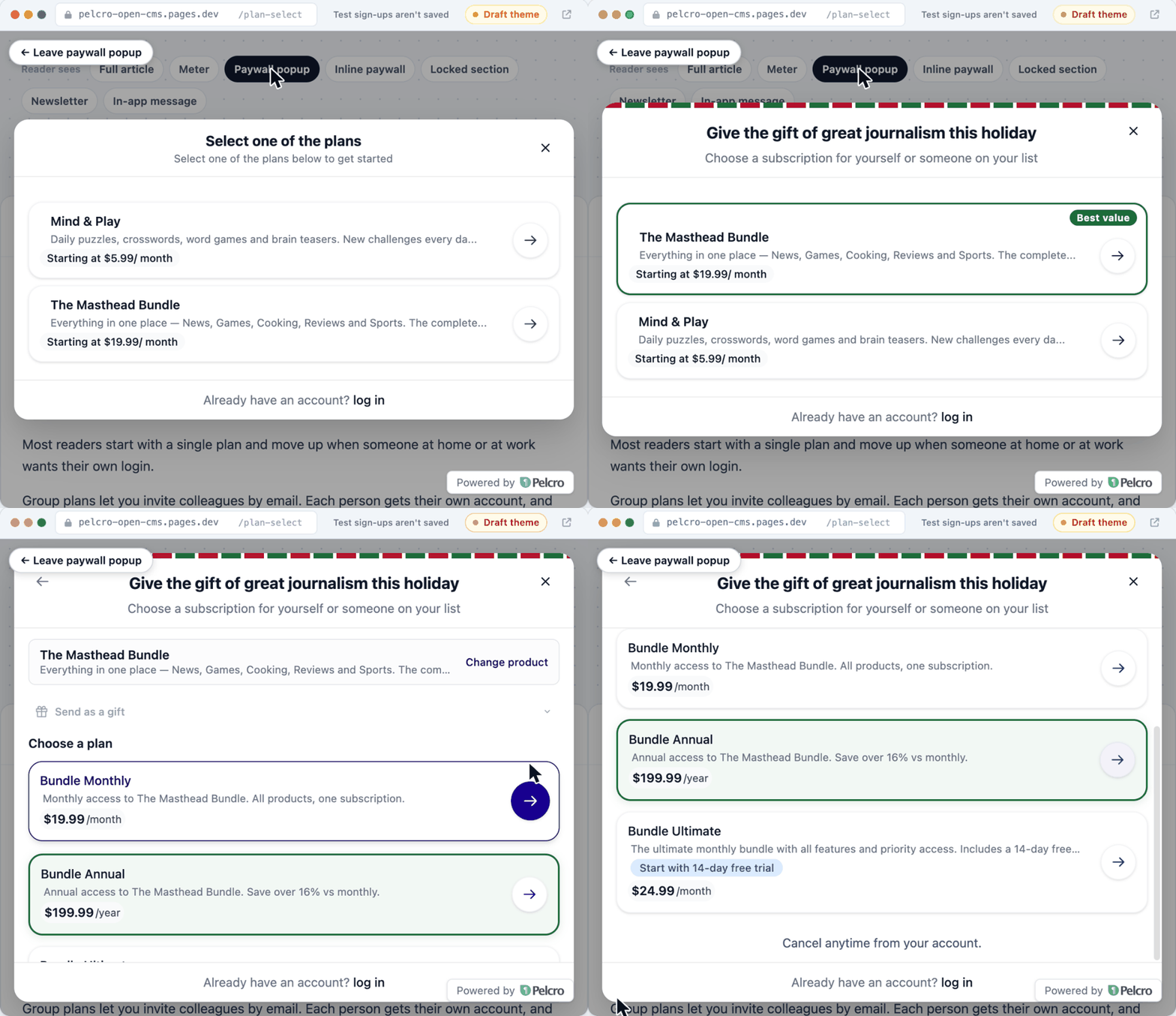
A seasonal offer on Pelcro's own paywall popup and plan-select screen: a new headline and subhead, a small festive accent at the top, a product shown first with a Best value label, the annual plan highlighted, and one reassurance line under the plans.
- Prompts it took:
- 1
- Run time:
- 7m 24s
- Model cost:
- $3.92
What we learned: It worked on the first prompt, and AI Studio fixed a label that overlapped the arrow on phones by itself. This example uses the Experience builder, which changes Pelcro's own popup, so it works on any site that uses Pelcro's paywall. AI Studio checked that a gift line was true because gifting exists in the account, and suggested confirming that cancelling works from the account area before you claim Cancel anytime.
AI Studio prompt
Turn my paywall popup and plan-select screen into a [CAMPAIGN] subscription offer. On the paywall popup, use the headline "[HEADLINE]" and the subhead "[SUBHEAD]", add a small [THEME] accent at the top of the popup, and show [PRODUCT] first with a "[LABEL]" label. On the plan-select screen, use the same headline, highlight the [annual] plan, and add one line under the plans: "[REASSURANCE LINE]". Only use plans, prices and claims that exist in my Pelcro account. Keep everything readable on phones.
Replace the highlighted [brackets] with your own details.
What did AI Studio refuse to guess?
In seven cases AI Studio stopped or changed our request because it could not back up what we asked for. That matters for a publisher, because a banner that promises a discount or a price that does not exist becomes a customer service problem.
| What we asked for | What AI Studio did | What to do instead |
|---|---|---|
| An inflation calculator for 2025 and 2026 | Declined to guess figures it could not confirm | Use confirmed years only and state the data source |
| Canadian dollar prices | Declined, because our plans only exist in US dollars | Create plans in that currency in Pelcro first |
| "We are a Canadian company" | Declined, because our account is set up in the US | Only state facts that are true for your own account |
| A Black Friday discount | Declined, because the discount did not exist, and suggested a real coupon code | Create the coupon first, and make sure the banner wording matches its terms |
| A timeline of 6 to 8 moments | Built 4, because the free part of the article covered only those | Use only free facts, or accept fewer moments |
| Photos for a gallery | Drew illustrations and labelled them as illustrations | Attach your own photos and ask it to use them |
| An A/B test on the paywall popup | Built nothing. The Experience builder cannot split readers or keep each reader on one version | Run an A/B test on a landing page instead, or run the versions one after the other and tag each link with a UTM campaign |
How do you use these prompts on your own site?
Work through this list for each example you try.
- Copy one prompt. Use the Copy prompt button on the example you want.
- Fill in the brackets. Replace each highlighted part with your own article title, colors, countries or dates.
- Review the preview. Check the result before it reaches readers.
- Ask for a test address. Where a result depends on the date, country, campaign or weather, the prompts ask for a preview address so you can check each case.
- Check logged-out visitors and mobile. Our first quiz was visible only to subscribers until we asked for it to show to everyone.
- Confirm every claim. Prices, offers and company facts on the page must be true for your account.
- Publish to your live website. Once the preview looks right, publish the change.
How does AI Studio handle requests like these?
In our runs, AI Studio built each change in a draft preview and stopped to ask a question when it could not do what we wrote. The builds we timed took between 1 minute 57 seconds and 8 minutes 34 seconds.
Eleven of the twelve examples worked from a single prompt in our final runs. The landing page needed four. The UTM banner also took four prompts the first time. The prompts on this page already include the fixes from those follow-ups, so you should not need to repeat them.
Frequently Asked Questions
What can you build with an AI website builder?
A publisher can build quizzes, calculators, image galleries, interactive timelines, theme changes, seasonal banners, location messages, campaign banners and weather backgrounds, subscription landing pages, A/B tests and paywall popup offers. We built twelve of these in AI Studio, and each one is listed above with a demo and a prompt.
Can an AI website builder add a quiz to my site?
Yes. In our run, AI Studio added a three-question quiz at the end of an article, with instant right or wrong feedback, a one-line explanation, and a score with a share button. Ask for the quiz to be visible to every reader, or it may be placed behind your paywall.
Do I need to know how to code to use these prompts?
No. We pasted plain-language instructions and did not write any code. You still need to check the preview, because the builder can misread a request.
How long does it take an AI website builder to build a quiz or banner?
The builds we timed took between 1 minute 57 seconds and 8 minutes 34 seconds. Examples that needed follow-up prompts took longer overall.
Can an AI website builder run an A/B test?
Yes, on a page it builds. In our run, AI Studio split new visitors 50/50 on a landing page, kept each visitor on the same version, and let us force a version with ?variant=a or ?variant=b in the address. It could not do the same on Pelcro's paywall popup. Our demo site had no analytics connected, so you need Google Analytics, Google Tag Manager or Mixpanel to read the results.
Can I show different banners to different visitors?
Yes. We built a welcome strip that changes with the visitor's country, and a banner that changes with the utm_campaign in the link a visitor arrived from. When we opened the preview from Toronto, the Canada strip showed without any test setting.
Will an AI website builder make up facts or prices for my content?
In our runs, AI Studio refused to guess figures it could not confirm, such as 2025 and 2026 price data, and declined to advertise a discount that did not exist. Review every claim anyway, since you know what is true for your business.
Does a weather background slow down my site or annoy readers?
We did not measure page speed. The prompt asks for clearly visible effects that keep the logo and menu readable, and for the animation to turn off for visitors who prefer reduced motion.
Is it safe to test these on my live site?
We built every example in a draft on a sandbox site. Do the same, and publish only after you have checked the result on desktop and mobile.